Settings & branding
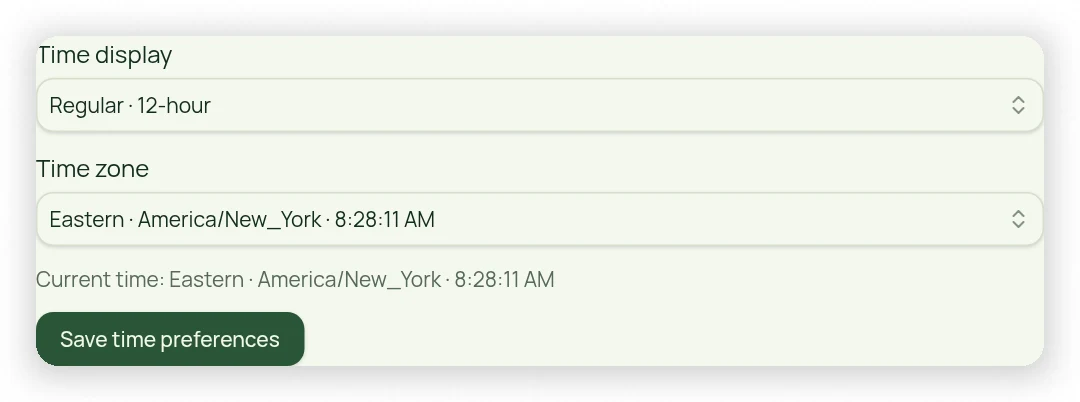
Set business details, time zone and time display
Keep scheduling dates and reporting windows consistent with your local business time.
Profile is separate from Settings
Use Profile near the bottom of the menu for business/account details and Update Sign-In Email. Profile is not a Settings section. Review the configured time zone and 12-hour/24-hour display controls before scheduling or comparing date-based metrics.
Choose the right zone
The time-zone dropdown includes the current time so you can compare it with your watch. Eastern, Central, Mountain and Pacific choices appear first. Choose the actual regional time zone, not an assumed permanent UTC offset, so daylight-saving behavior matches the location.
Time and money inputs
Appointment start choices use 15-minute increments across owner and client workflows. Money-input arrows move by $1.00 while allowing manually entered cents. Report dates and invoice due windows use the business time zone; check it before diagnosing a one-day or one-hour discrepancy.