Calendar & booking
Navigate the calendar and subscribe from another app
Find dates, filter appointments and use a private calendar subscription.
For all readers1 min read
Calendar controls
Owners can move between dates and Week/Month views. On mobile the view control cycles Today, Week and Month; arrows and date range stay together. Month dates show appointment counts. Expand Filters to choose All Group Classes, All Sessions and client/parent filters, then collapse them for more space.
Subscribe to a feed
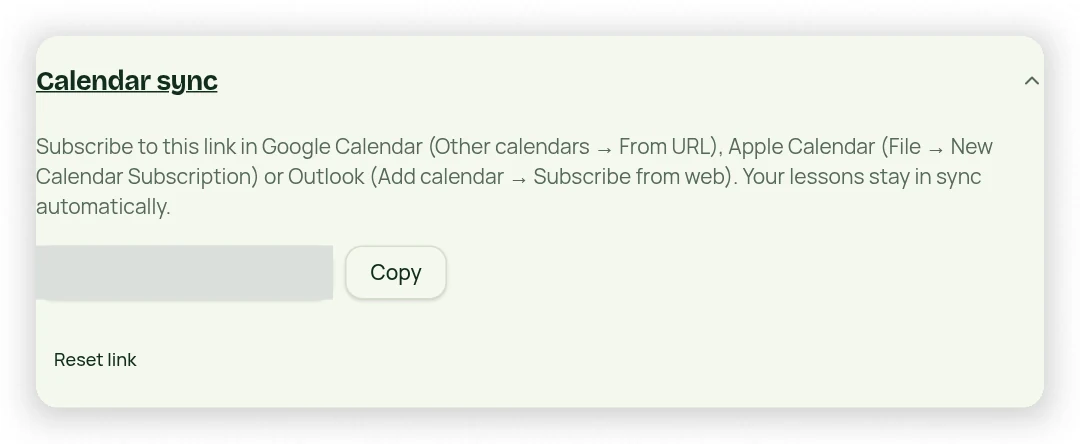
- For the business feed, open Settings → Calendar Sync and copy the subscription link.
- For a client-specific feed, use the calendar link associated with that client.
- In Google, Apple or Outlook calendar, choose the option to subscribe by URL and paste the link.
- Allow the receiving calendar time to refresh its subscription.
Protect the subscription link
A feed link contains a private token; anyone with it may read the events it exposes. Do not post it publicly. Reset a business feed link if it was shared unintentionally, then update your subscriptions. This is a subscription feed, not two-way editing: changes made in another calendar do not automatically edit StudioLife appointments.