Calendar & booking
Set availability, buffers and time off
Understand why a requested booking slot may not be available.
For owners1 min read
Available is more than an empty calendar
Bookable slots must match instructor availability and respect existing appointments, travel buffers, time off and booking rules. The client’s eligible entitlement and group capacity also matter. A blank-looking time on the calendar is not a promise that client booking will offer it.
Configure the schedule
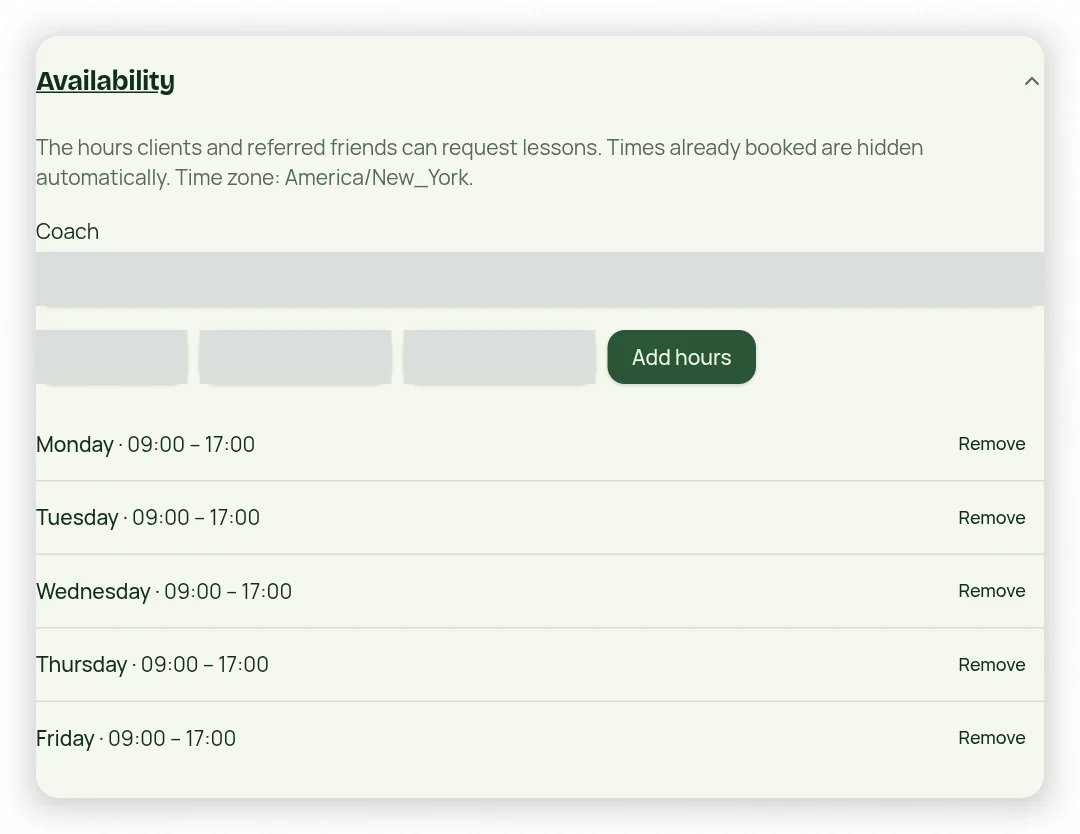
- In Settings → Availability, select the instructor and enter their working days and times.
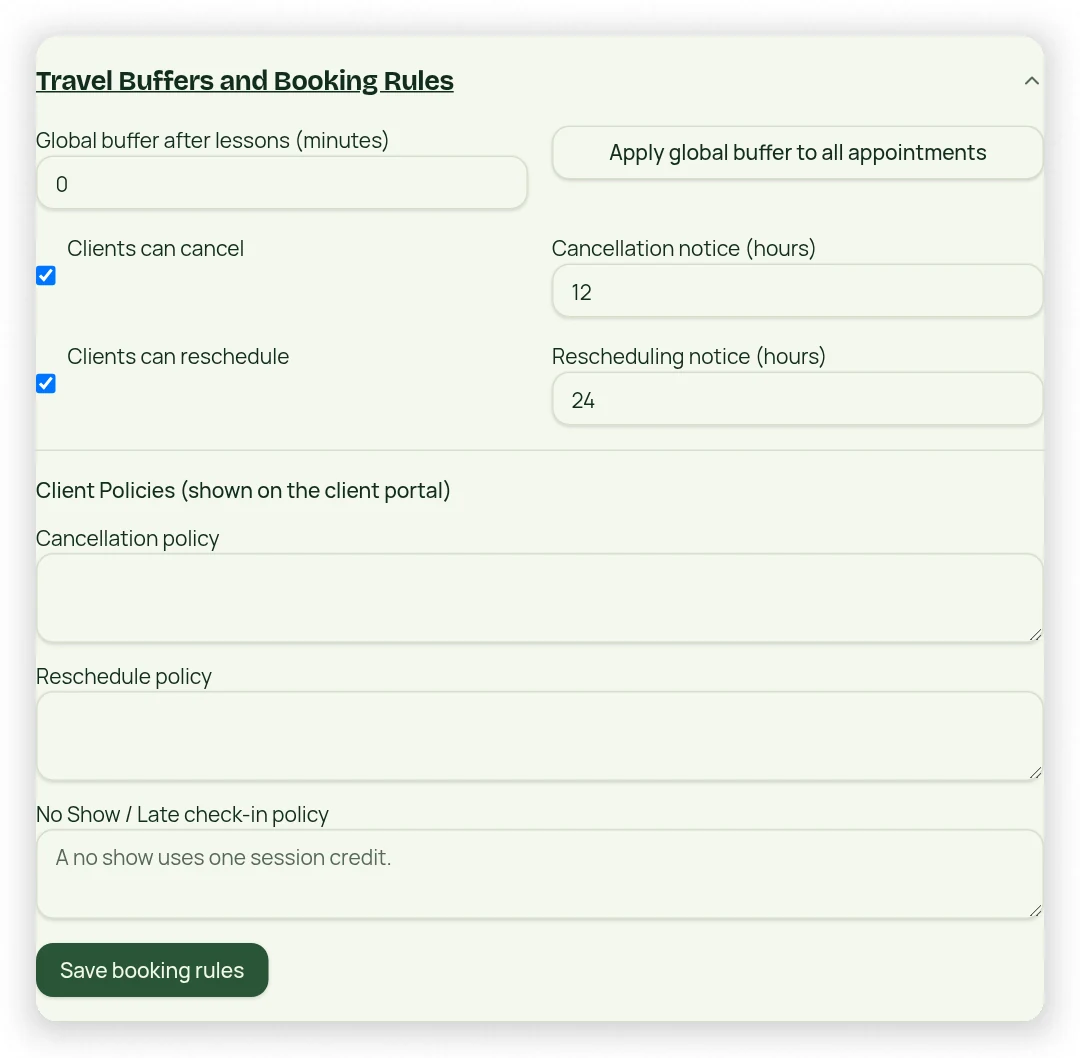
- Review Travel Buffers and Booking Rules for booking and request restrictions.
- Add vacations and other closures in Vacation and Time Off.
- Check the business time zone and use 15-minute time increments.
- Try the expected booking date and review any displayed restriction.
Safe overrides
Owners may override scheduling conflicts only after reviewing the specific warnings in the owner flow. This does not remove protections from the client portal. Changing availability also does not automatically move previously scheduled appointments; review and edit those occurrences separately.