Team & timecards
Clock in and out with your employee code
Record a shift from an owner-approved browser.
For team1 min read
Use the approved station
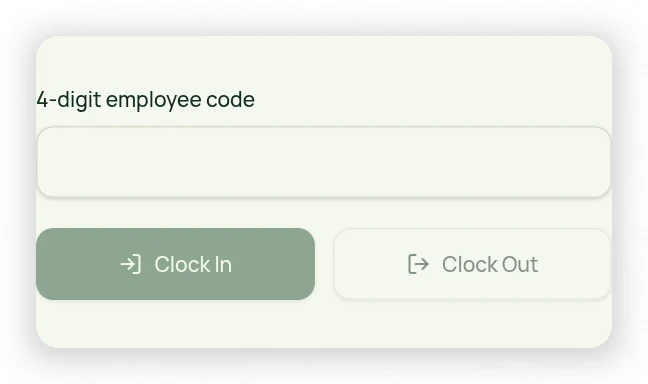
Open the shared office clock on the approved browser or the authorized Punch Clock screen. Enter your unique four-digit code. A code identifies the employee but does not make an unapproved browser trusted, and it must not be shared with another employee.
Record a shift
- Confirm you are using the approved office browser.
- Enter your code and choose the available clock-in action.
- Read the confirmation before starting work.
- At the end of the shift, use the same clock to clock out.
- Review the shift in your timecard/profile.
If a punch is rejected
A missing browser approval, invalid code or already-open shift can block a punch. Avoid repeatedly guessing codes. Ask the Owner to review browser approval or your code, and request a timecard correction for a missed punch rather than entering another person’s code.