Team & timecards
Invite teammates and choose permissions
Create employee access without sharing the owner’s account.
Invite from Team
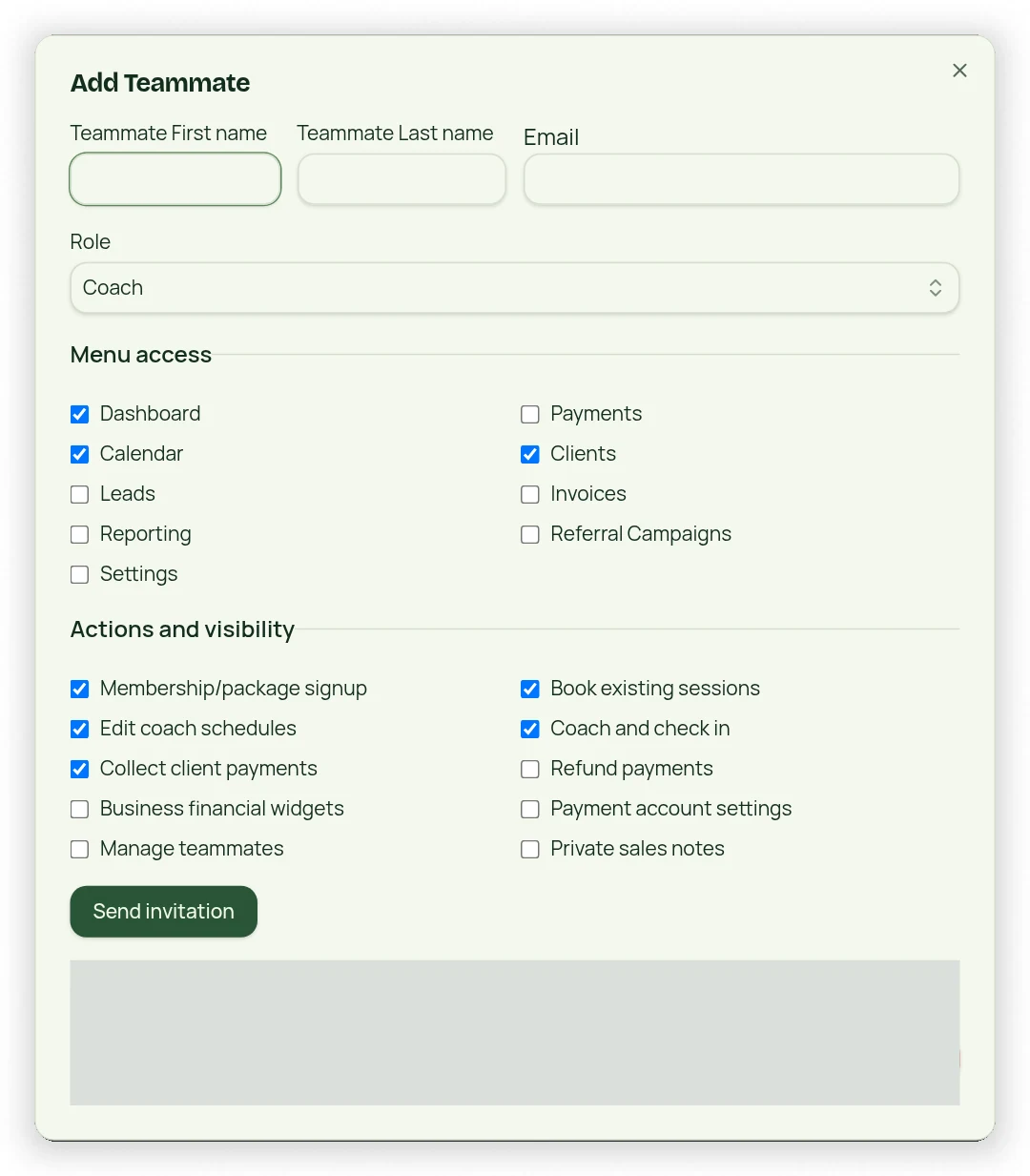
- Open Team → Add Teammate.
- Enter the employee’s first/last name and email.
- Choose a role and review the suggested menu/capability permissions.
- Adjust allowed capabilities to match their work.
- Send the invitation and have the teammate create or sign in to their own account.
Understand the roles
Instructor, Sales, Admin, Co-Owner and Hybrid suggest different operational access. Instructor/Hybrid can instructor classes; Sales can handle sales and existing-session booking without changing instructor schedules. Accountant is reporting-only. Permissions can hide financial widgets and restrict specific actions; a role label is not a promise of full owner-equivalent editing.
Protect owner access
Do not give staff the owner’s password. Owner and Co-Owner can manage the roster/profile projection; owner-only approvals remain owner-only. Review permissions when a job changes or someone leaves. Menu visibility is a convenience; the underlying authorized actions must still enforce the capability.