Clients & leads
Import leads from a CSV file
Bring a contact list into Leads without creating purchases or paid clients.
For owners1 min read
Prepare the file
Save your spreadsheet as CSV and use the import screen’s supported columns or sample format. Keep names, phones, emails and parent information consistent. An import adds leads only; it does not enroll memberships, create invoices or record payment.
Import and review
- Open Leads and choose the CSV import option.
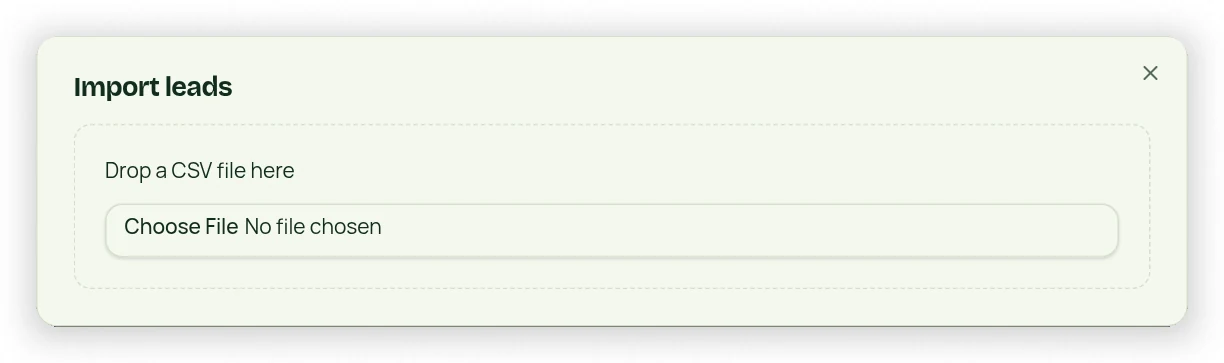
- Drop the CSV into the upload area or select the file.
- Review the detected fields and validation messages before confirming.
- Check duplicate/skipped records and correct rejected rows before importing them again.
- Search Leads for a few imported contacts to confirm their details.
Avoid duplicate records
Normalize phone and email values in your source list and remove repeated rows before uploading. Do not repeatedly import the entire file to repair one row. If an existing contact is identified, review it instead of assuming a second record is needed.