Clients & leads
Search, filter and organize Clients and Leads
Find contacts by name, parent, source or status and arrange list columns.
For owners1 min read
Use the right list
Leads and Clients are separate navigation destinations. An unpaid lead’s profile should retain the Leads context. If a contact has purchased a qualifying plan or paid drop-in, search Clients as well as checking list filters.
Narrow the results
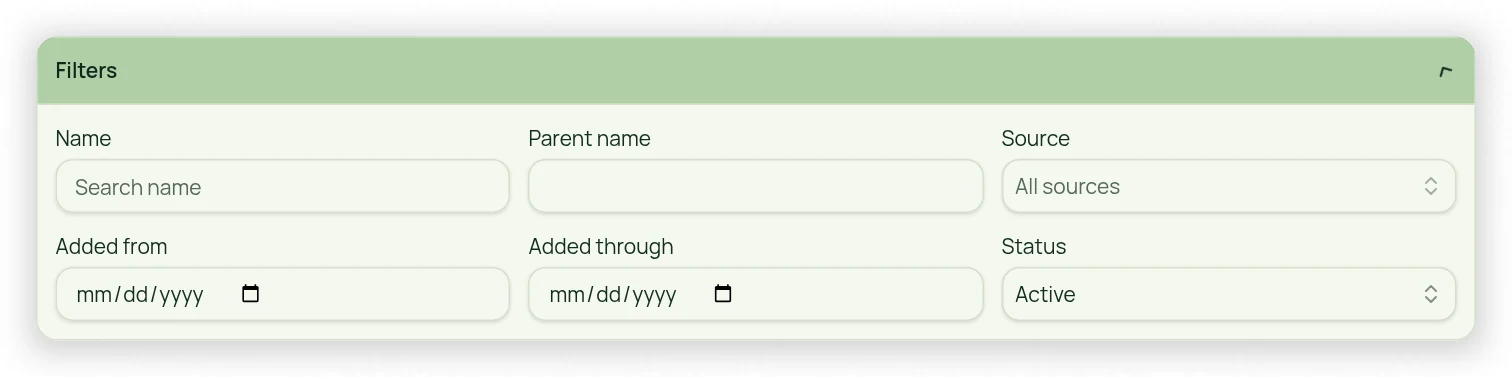
- Expand the list’s filter section.
- Select client/name and parent criteria using the searchable choices.
- In Leads, apply added-date range and Marketing Source as needed.
- In Clients, review active/deactivated status so hidden records are not mistaken for deleted ones.
- Clear unnecessary filters when the expected person is missing.
Arrange columns
Drag a column heading left or right to change the order. This changes presentation, not contact data. On a small screen, horizontal scrolling may still be needed to reach all columns. Collapse filters when finished to give the list more room.